How to Use an FPS Calculator is simple: enter your PC hardware, choose a game and resolution, select your graphics settings, and review the estimated frames per second. An FPS calculator helps you get a rough idea of how a game may perform before you install it, change hardware, or adjust your settings.
It can be especially useful when you’re deciding whether your current PC can handle a game at 1080p, 1440p, or 4K. However, an FPS calculator gives an estimate, not a guaranteed result.
Table of Contents
What Is an FPS Calculator?
An FPS calculator is an online tool that estimates the frames per second a computer may achieve in a particular game.
FPS means frames per second. It describes how many individual frames your system renders each second while a game is running.
An FPS calculator usually considers hardware such as:
- CPU
- GPU
- RAM
- Resolution
- Graphics quality
- Game title
- Sometimes other performance-related settings
For example, you might enter a Ryzen 5 processor, an RTX graphics card, 16 GB of RAM, and 1080p resolution. The calculator can then provide an estimated FPS range for a selected game.
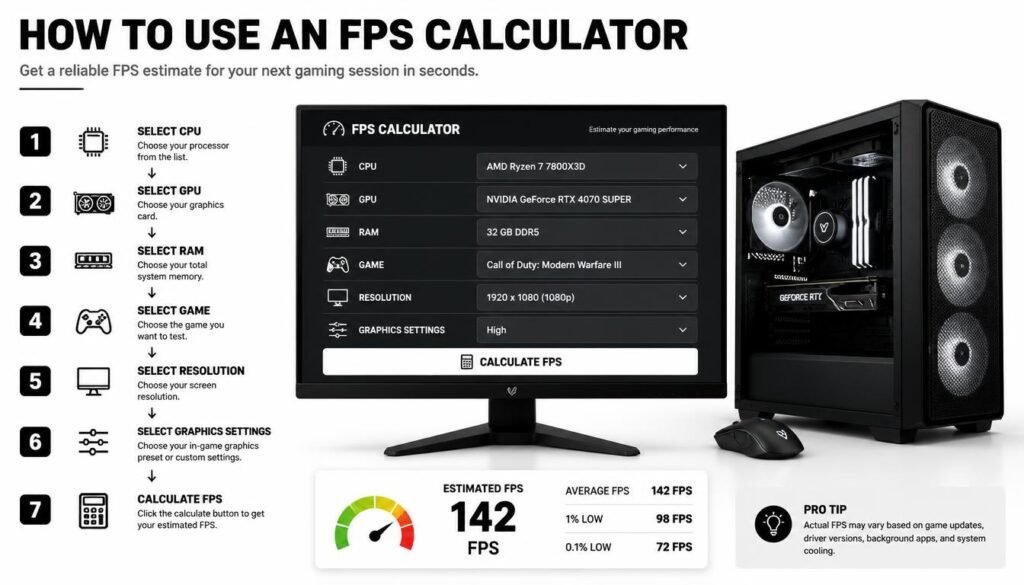
How to Use an FPS Calculator
Using an FPS calculator usually takes only a few minutes. The key is to enter accurate hardware information and choose settings that match how you actually plan to play.
Step 1: Identify Your PC Hardware
Start by finding your main system specifications.
You generally need to know your:
- Processor (CPU)
- Graphics card (GPU)
- RAM capacity
- Monitor resolution
Your CPU and GPU are especially important because they have a major effect on gaming performance.
On Windows, you can use built-in system information tools to check your processor and installed memory. Your GPU information can also be viewed through Windows settings or graphics software from your GPU manufacturer.
Step 2: Select Your Game
Choose the game you want to test.
This matters because every game has a different engine, graphics workload, optimization level, and hardware requirement.
For example, a PC that performs well in a lightweight competitive game may produce a much lower FPS result in a visually demanding open-world title.
Select the exact game whenever the calculator provides multiple game options.
Step 3: Choose Your Resolution
Next, select the resolution you plan to use.
Common gaming resolutions include:
- 1920 × 1080 (1080p)
- 2560 × 1440 (1440p)
- 3840 × 2160 (4K)
Resolution has a major impact on GPU workload. Higher resolutions require the graphics card to render more pixels.
If you normally play at 1440p, do not use a 1080p estimate and assume it represents your real-world performance.
Step 4: Select Graphics Settings
Choose a graphics preset that matches your intended settings.
Depending on the calculator, you may see options such as:
- Low
- Medium
- High
- Ultra
- Custom
Select High if you normally use high settings. Choose Ultra only if you actually plan to use those settings.
This makes the estimate more useful because you are comparing it with the type of gameplay you expect.
Step 5: Enter Your RAM
Enter the amount of system RAM installed in your PC.
Common capacities include 8 GB, 16 GB, 32 GB, and more.
RAM can affect gaming performance, but the amount of RAM alone does not determine FPS. Your CPU, GPU, game settings, resolution, and game optimization also matter.
Step 6: Calculate the Estimated FPS
After entering your information, run the calculator.
Depending on the tool, you may receive an estimated FPS number or a range.
For example, it might estimate:
1080p High: 100–130 FPS
That means the tool expects performance around that range under the selected conditions. It should not be treated as a promise that you will see exactly the same FPS in every part of the game.
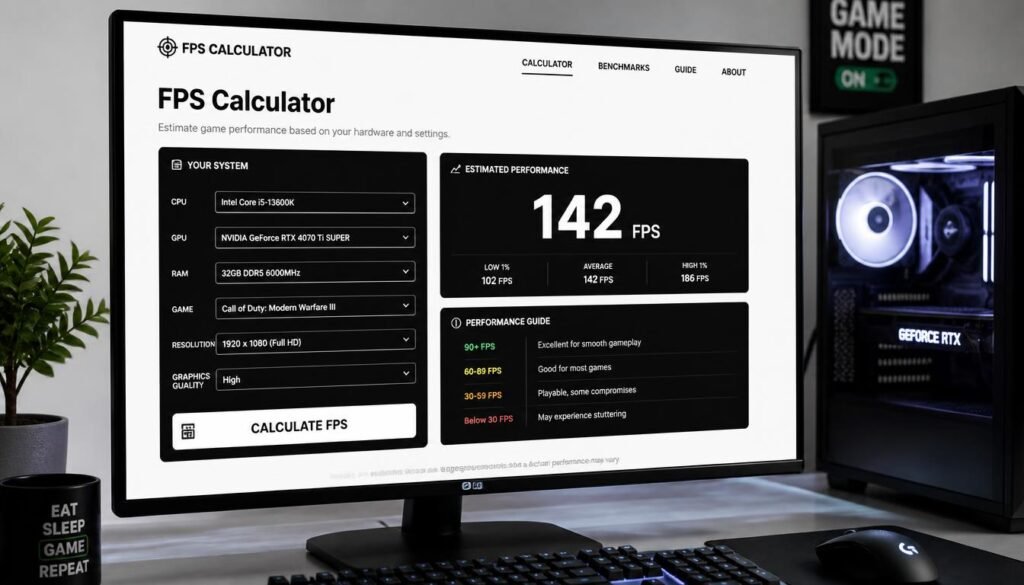
What Information Does an FPS Calculator Need?
Most FPS calculators use your major hardware components and gaming settings.
| Input | Why It Matters |
|---|---|
| CPU | Affects game logic, physics, AI, and other processor-heavy tasks |
| GPU | Handles most graphics rendering |
| RAM | Provides system memory for games and applications |
| Resolution | Higher resolutions increase rendering workload |
| Graphics settings | Higher settings usually require more GPU resources |
| Game | Different games have different performance demands |
Some calculators may also include features such as ray tracing, upscaling, or frame generation.
Why Your FPS Calculator Result Is Only an Estimate
An FPS calculator cannot perfectly reproduce your PC.
The actual FPS you see in a game can change based on many factors, including:
Game Updates
Developers can improve or change game performance through patches and updates.
A calculator’s estimate may not reflect every future optimization or performance regression.
Graphics Driver Version
GPU driver updates can affect performance, compatibility, and game-specific behavior.
Background Programs
Browsers, recording software, overlays, launchers, and other applications can use system resources.
In-Game Areas
FPS can vary dramatically depending on what’s happening on screen.
A quiet indoor area may run much faster than a crowded city, large battle, or graphically demanding scene.
Thermal Limits
CPU and GPU temperatures can affect performance. A system that becomes too hot may reduce its operating speed.
Game Optimization
Two games with similar visual quality can have very different performance because their engines and optimization are different.
For these reasons, an FPS calculator should be viewed as a planning tool, not a benchmark replacement.
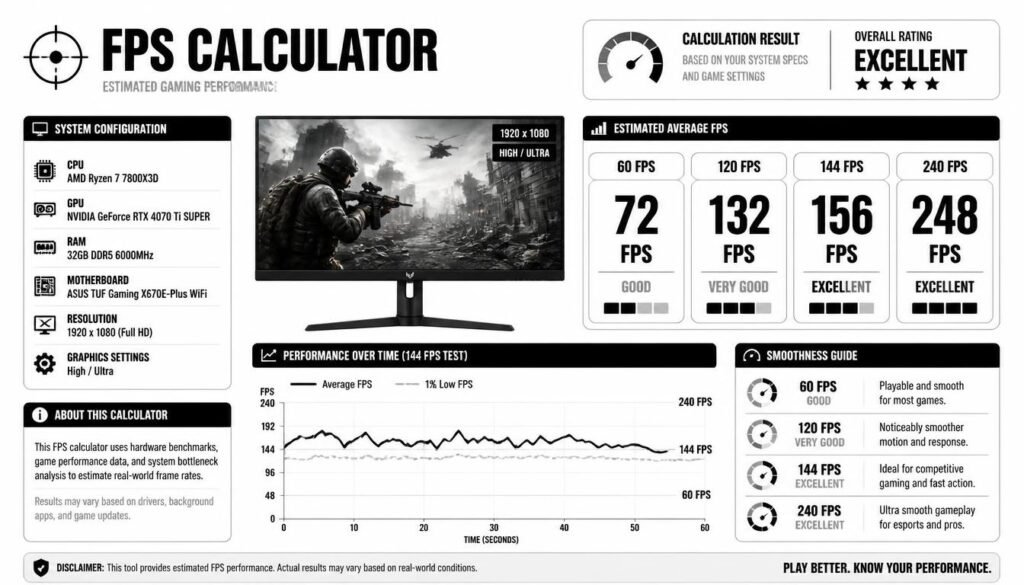
How Accurate Are FPS Calculators?
FPS calculators are useful for rough estimates, but their accuracy varies.
A result can be more useful when the calculator has reliable hardware data, supports the exact game you’re interested in, and accounts for resolution and graphics settings.
Still, the estimate may differ from your actual FPS.
For the most reliable answer, test the game on your own hardware using an in-game benchmark or FPS monitoring tool.
How to Read FPS Calculator Results
Don’t focus only on the largest FPS number shown.
Look for the resolution and graphics preset associated with the result.
For example:
| Estimated FPS | General Experience |
|---|---|
| Under 30 FPS | Often feels sluggish |
| 30–59 FPS | Playable for some games |
| Around 60 FPS | Good target for many games |
| 90–120 FPS | Very smooth |
| 144+ FPS | Excellent for high-refresh gaming |
| 240+ FPS | Mainly useful for competitive gaming |
The appropriate target depends on the game and your monitor.
A stable 60 FPS can be preferable to a performance result that repeatedly jumps between much higher and lower values.
FPS Calculator vs FPS Benchmark
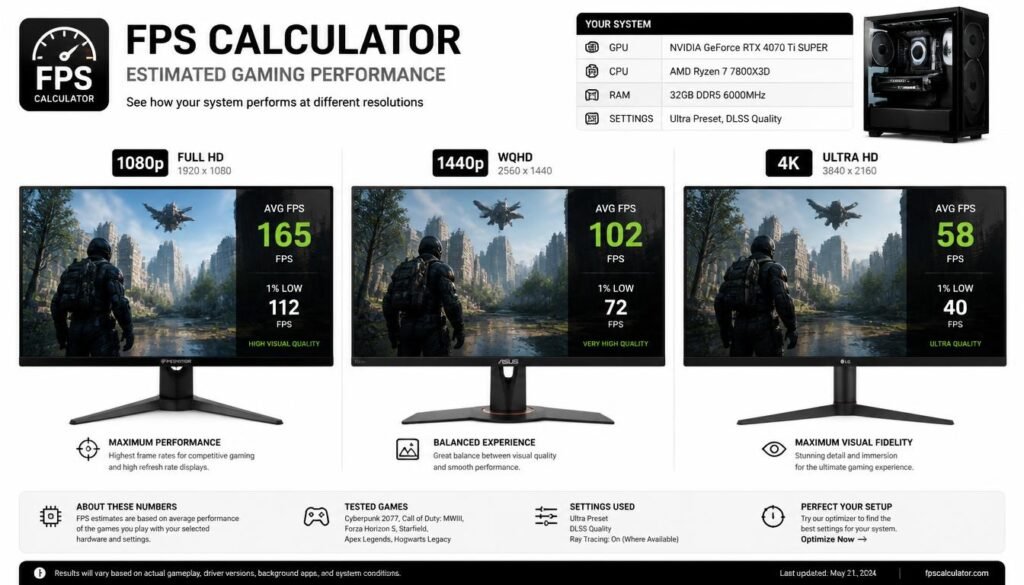
An FPS calculator predicts performance before you run the game.
A benchmark measures performance on your actual system.
That makes a benchmark more useful when you need precise information about your PC.
For example, an FPS calculator might estimate 120 FPS at 1080p High. After installing the game, your actual result could be 105 FPS because of background processes, driver differences, game updates, or a demanding in-game scene.
Use a calculator for planning and a benchmark for verification.
Can an FPS Calculator Tell You If a Game Will Run?
Yes, an FPS calculator can give you a helpful indication of whether your hardware is likely to run a game at a playable frame rate.
For example, if the calculator estimates around 80 FPS at 1080p Medium, your PC may be suitable for that configuration.
But remember that “will run” and “will run well” are different questions.
A game may launch successfully while still producing poor FPS or frequent stutters. Look at the estimated performance alongside the game’s official system requirements.
How to Use an FPS Calculator for a PC Upgrade
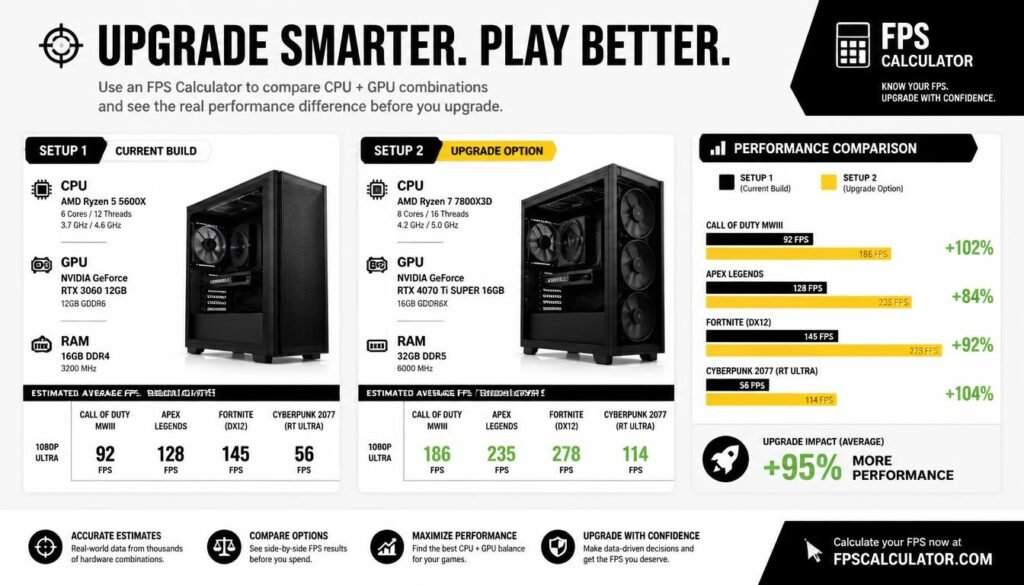
An FPS calculator can also help when deciding which hardware upgrade makes sense.
Suppose your current PC produces an estimated 55 FPS in a game, but you want 120 FPS.
You could compare different CPU and GPU combinations to see how an upgrade might affect the estimate.
This does not guarantee the exact improvement, but it can help narrow down your options.
GPU Upgrade
If your system is primarily GPU-limited, upgrading the graphics card may provide the biggest improvement.
CPU Upgrade
If the game is CPU-limited, a faster processor can be more useful than buying a stronger GPU.
This is why blindly upgrading the most expensive component is not always the best approach.
What Is a CPU Bottleneck and GPU Bottleneck?
A CPU bottleneck happens when the processor limits how quickly the system can prepare and process game data.
A GPU bottleneck happens when the graphics card is the main limitation for rendering frames.
FPS calculators may provide some indication of the balance between these components, but actual monitoring during gameplay gives a clearer picture.
Tools that show CPU and GPU usage can help determine which component is working hardest.
How to Use an FPS Calculator for 1080p, 1440p, and 4K
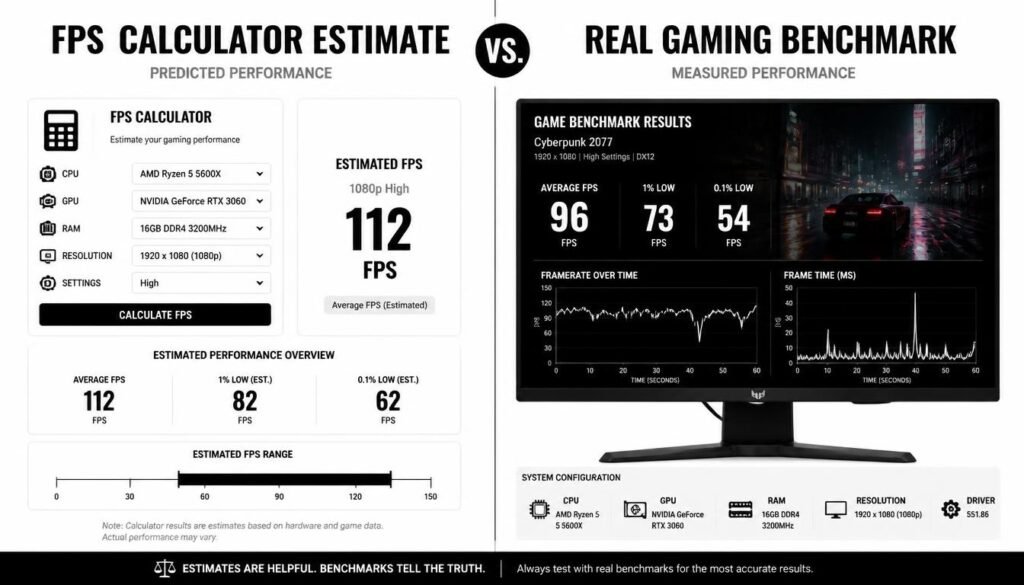
Your target resolution should always match your real gaming setup.
1080p Gaming
1080p is generally less demanding than 1440p and 4K, so a graphics card may produce higher FPS at this resolution.
This makes 1080p a common choice for high-refresh-rate competitive gaming.
1440p Gaming
1440p increases the rendering workload compared with 1080p but provides a sharper image.
When using an FPS calculator, select 1440p if your gaming monitor has that native resolution.
4K Gaming
4K is significantly more demanding because the GPU must render many more pixels.
If you use a 4K display, always select 4K in the FPS calculator to get a more relevant estimate.
Common Mistakes When Using an FPS Calculator
Entering the Wrong GPU
A graphics card name can be easy to confuse with another model.
Double-check the exact GPU series and model before calculating.
Choosing the Wrong Resolution
A 1080p estimate is not a useful replacement for a 1440p or 4K estimate.
Always select the resolution you actually use.
Ignoring Graphics Settings
Ultra settings can produce very different results from Medium settings.
Choose the preset you realistically plan to use.
Treating the Result as Exact
An FPS calculator is not measuring your PC in real time.
Use the result as an estimate rather than a guaranteed frame rate.
Looking Only at Average FPS
Average FPS does not tell you everything about gaming smoothness.
Frame-time consistency and low-FPS dips can also affect how a game feels.
How to Get Better Results From an FPS Calculator
For a more useful estimate, follow these simple rules:
- Enter your exact CPU and GPU models.
- Select the correct amount of RAM.
- Choose your actual gaming resolution.
- Select the graphics preset you expect to use.
- Check multiple settings instead of relying on one result.
- Compare the estimate with real-world benchmarks when available.
This gives you a much better idea of what your system may deliver.
Should You Trust an Online FPS Calculator?
You can use an online FPS calculator as a general performance guide, but you should not rely on it as the only source for a buying decision.
The best approach is to use several pieces of information together:
FPS calculator + official game requirements + independent benchmarks + your actual hardware
That combination gives you a more realistic picture than any single estimate.
Frequently Asked Questions
What is an FPS calculator used for?
An FPS calculator estimates how many frames per second a PC may produce in a specific game based on hardware, resolution, and graphics settings.
How do I use an FPS calculator?
Enter your CPU, GPU, RAM, game, resolution, and graphics settings. Then calculate the estimated FPS and compare the result with your desired gaming performance.
Are FPS calculators accurate?
They can provide useful estimates, but they are not guaranteed to match actual in-game performance. Real FPS can change because of drivers, updates, temperatures, background tasks, and different game scenes.
Can an FPS calculator tell me if my PC can run a game?
Yes. It can give you an estimate of whether your hardware is likely to achieve a playable frame rate at a selected resolution and graphics setting.
Does more RAM increase FPS?
Adding RAM does not automatically increase FPS in every situation. Performance depends on the entire system, including the CPU, GPU, memory configuration, game, and settings.
Should I use 1080p, 1440p, or 4K in an FPS calculator?
Choose the resolution you actually plan to play at. Using the wrong resolution can make the estimate less useful.
What is a good FPS for gaming?
For many games, 60 FPS is a good baseline. Around 120–144 FPS is excellent for smoother gaming, while 240 FPS or more is mainly useful for competitive players with high-refresh-rate displays.
Is an FPS calculator better than a benchmark?
No. An FPS calculator is useful for predicting performance before testing a game, while a benchmark measures your actual system. For accurate results, real-world testing is better.
Conclusion
Learning how to use an FPS calculator can make it easier to estimate gaming performance before downloading a game, changing settings, or upgrading your PC.
Enter accurate hardware details, choose the correct game and resolution, select realistic graphics settings, and treat the result as an estimate rather than an exact measurement.
For the best decision, use an FPS calculator alongside official requirements and real-world benchmarks. That way, you can judge whether your PC is likely to deliver the FPS and gaming experience you actually want.