Ultimate FPS Calculator Monochrome
Calculate your expected frame rates with our comprehensive database of 2000+ CPUs, 2000+ GPUs, and 5000+ games
Select Your Hardware
Processor (CPU) 2000+
Graphics Card (GPU) 2000+
Memory & Storage
Game & Display Settings
Game Selection 5000+
Quality Settings
Display Settings
Performance Results
Select hardware above and click Calculate
Performance in Other Games
Master Your Build. Crush the Guesswork.
Stop letting pre-purchase anxiety kill your excitement. Know exactly how your future rig will perform before you spend a dime. Our data-driven FPS predictor, crafted by gamers, cuts through the noise to give you actionable performance insights. Dial in your optimal settings instantly and get back to what matters dominating the leaderboard.
Table of Contents
What Exactly Is This Tool?
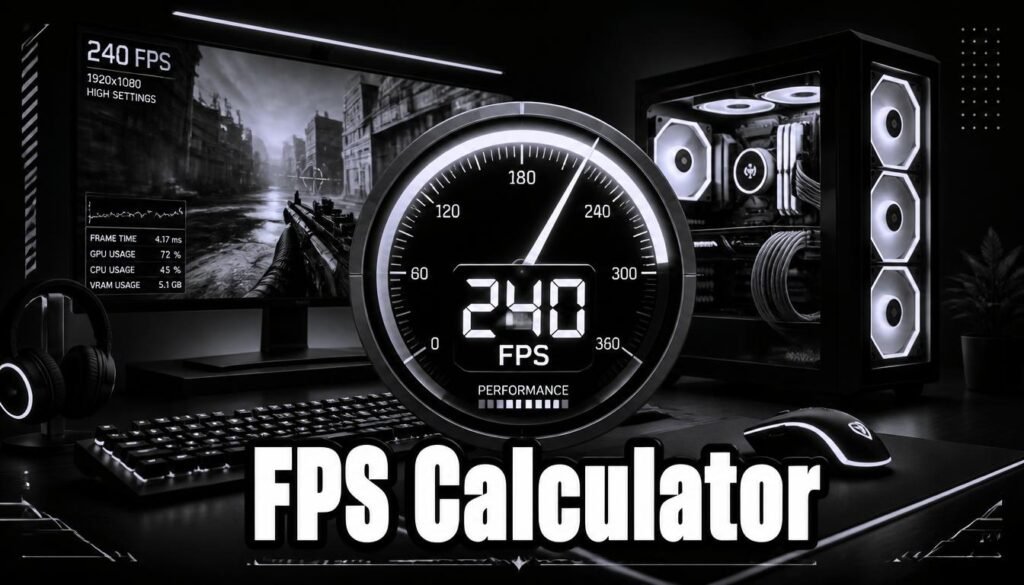
The Ultimate FPS Calculator is a free, browser-based performance engine that answers one critical question: How many frames will my PC actually push in this game? Pick your CPU, choose your GPU, select any title, and get your forecast in seconds. No downloads. No logins. No wild guessing.
It’s designed for every level of player whether you’re a competitive grinder obsessing over refresh rates, a casual adventurer chasing visual fidelity, or a first-time builder drowning in spec sheets.
Why FPS Is Your Most Important Metric
Frames Per Second (FPS) is the rhythm of your gameplay. Imagine a flipbook: the faster you turn the pages, the smoother the story flows. Gaming runs on the exact same principle. Here’s what the FPS numbers actually feel like in the real world:
- Under 30 FPS – A jarring, stutter-filled slog.
- 30 – 60 FPS – Serviceable, but you’ll notice the rough edges.
- 60 – 100 FPS – The butter zone: fluid, responsive, and widely considered the gold standard.
- 100 – 144 FPS – Sharp, snappy, and genuinely competitive.
- 144+ FPS – Liquid-smooth perfection for elite reaction times.
While 60 FPS is the baseline for a satisfying single-player experience, competitive shooters like Valorant and CS2 reward every single frame you can unlock so pushing higher is always worth it.
Powered by One of the Largest Free Databases on the Web
We don’t rely on marketing fluff our estimates are grounded in real-world data. Behind the scenes, the calculator draws from a massive, meticulously maintained library:
- 2,000+ CPUs – Spanning budget Ryzen chips to flagship Core i9 monsters.
- 2,000+ GPUs – Complete coverage of NVIDIA RTX/GTX, AMD Radeon, and Intel Arc.
- 5,000+ Games – From graphically punishing titles like Cyberpunk 2077 and Alan Wake 2 to lightweight esports giants like League of Legends.
Every component and game is benchmarked against actual player performance metrics—so you get forecasts you can actually trust, not inflated manufacturer promises.
The Engine Behind the Estimate
This isn’t a random number generator. The calculator runs a sophisticated multi-factor algorithm that simulates real-world gaming loads. Here’s the exact breakdown of what goes into every forecast:
- GPU Score – Establishes the baseline. Your graphics card is the workhorse of gaming, so it carries the heaviest weight.
- CPU Score – Adjusts that baseline up or down based on how effectively your processor can keep the GPU fed with data.
- Resolution Multiplier – Scales the workload; 4K requires pushing four times as many pixels as 1080p.
- Quality Preset – Adds another multiplier; Ultra settings and Ray Tracing are exponentially more taxing than High.
- Upscaling Tech (DLSS, FSR, XeSS) – Boosts performance dramatically; DLSS 3 Frame Generation alone can nearly double your frames.
- RAM Size & Speed – Applies fine-tuning adjustments that matter more than most people realize.
- Game Demand Score – The final divisor; a more punishing title like Cyberpunk will naturally drop that final number.
The result? Your estimated average FPS, delivered in seconds.
Mastering the Controls
Understanding what each setting actually does gives you the power to optimize intelligently:
- Resolution – The single biggest lever you can pull. Jumping from 1080p to 4K on the same hardware will roughly cut your frame rate in half—choose wisely.
- Ray Tracing – Delivers breathtaking, physically accurate lighting, but it comes at a brutal cost. Even flagship GPUs can buckle under 4K RT loads.
- DLSS / FSR / XeSS – The ultimate free performance hack. These render at a lower resolution and intelligently upscale to your target. DLSS Quality typically hands you a ~25% FPS boost with almost no visual trade-off. Always toggle this on before sacrificing other settings.
- DLSS 3 Frame Generation – AI-generated frames slotted between traditional renders, effectively doubling your frame rate in supported titles. Exclusively available on NVIDIA RTX 40-series cards.
- GPU Overclock – Push your card beyond factory speeds. The tool supports up to a +15% overclock and adjusts estimates accordingly.
- RAM Speed – Faster memory genuinely unlocks extra frames, especially on AMD Ryzen builds. Upgrading from 2133MHz to 3600MHz can deliver a 5–10% uplift in CPU-bound games.
- Anti-Aliasing – Smooths out jagged edges. SMAA strikes the best balance between clarity and performance, while MSAA 8x is a resource hog. If you’re using upscaling, anti-aliasing is usually handled automatically.
Your Performance Dashboard
Hit that Calculate button, and here’s exactly what lands on your screen:
- The Big FPS Number – Your estimated average frame rate, animated with a satisfying count-up effect.
- Performance Badge – A clear rating: Excellent (100+ FPS), Good (60–99 FPS), or Needs Improvement (sub-60).
- The Visual Meter – A quick-glance bar that shows exactly where you sit on the spectrum from 30 FPS to 144+.
- Hardware Recap – A tidy summary of your selected CPU, GPU, RAM, game, and resolution.
- Bonus Predictions – Instant FPS estimates for 8 other popular titles using your exact same hardware config—perfect for seeing how your build scales across different games.
The Bottleneck Breakdown
A bottleneck happens when one component can’t keep up with the other, holding your entire system back. Think of it like a busy kitchen:
- Your CPU is the Head Chef—prepping ingredients, organizing recipes, and delegating tasks.
- Your GPU is the Line Cook—taking those prepped ingredients and plating finished frames as fast as possible.
If the Head Chef is too slow, the Line Cook stands around waiting (CPU bottleneck). If the Line Cook is too slow, the Head Chef has nowhere to send the work (GPU bottleneck).
A 5–15% bottleneck is totally normal and actually indicates a well-balanced build. Only worry when one component is pegged at 100% usage while the other idles below 60%—that’s when you’re legitimately leaving performance on the table.
Zero-Cost Tweaks for Instant FPS Gains
Before you open your wallet, try these free performance boosters:
- Update Your GPU Drivers – NVIDIA and AMD regularly drop game-ready drivers that can improve FPS by 5–15% in specific titles.
- Enable DLSS or FSR – Bag an instant 20–30% performance lift with virtually no visual penalty in Quality mode.
- Drop Shadow Quality First – Shadows are the most expensive setting relative to what they actually add visually. Dropping from Ultra to High often recovers 10–15% FPS.
- Kill Background Apps – Chrome tabs, Discord streams, and Spotify all steal CPU cycles and RAM that your game desperately needs.
- Turn On XMP or EXPO in BIOS – Many systems ship with RAM running at a sluggish default speed. Enabling this profile unlocks your memory’s rated speed for an immediate, free performance bump.
Frequently Asked Questions
How accurate is it?
We aim for estimates within 10–15% of real-world performance for most hardware and game combos. It’s exceptionally reliable for answering the big questions—Can I hit 60 FPS? Is 4K viable? Is this upgrade worth it? Just keep in mind it models ideal conditions; background apps, driver quirks, and system tuning can shift real-world results slightly.
Why doesn’t my actual FPS match the estimate?
The calculator assumes a clean, optimized system. Common culprits for lower real-world FPS: outdated drivers, background processes hogging resources, RAM running at base speeds (go check XMP/EXPO), or Windows silently downloading updates. If your real FPS is higher, congratulations—you’ve just got a well-tuned rig.
What are 1% lows, and why should I care?
Average FPS tells you how smooth things feel most of the time. 1% lows measure the worst brief stutters—those split-second dips during explosions or hectic firefights. A game averaging 90 FPS but dropping to 20 FPS frequently will feel much worse than a game averaging 75 FPS that never dips below 65. This tool estimates average FPS; consistent 1% lows depend heavily on your RAM config, CPU stability, and system tuning.
I have a laptop GPU. Will the results be different?
Yes. Laptop GPUs share desktop names but run at lower power limits to manage heat in slim chassis. A mobile RTX 4070 typically performs 15–30% below its desktop namesake, so expect your real-world results to land somewhat lower than the estimate.
Should I upgrade my CPU or GPU first?
For pure gaming, the GPU almost always delivers more FPS per dollar. Upgrade the graphics card first—unless your CPU is genuinely maxed out at 100% while your GPU sits below 70% usage. In that specific scenario, fix the CPU bottleneck first, or that shiny new GPU won’t make a dent.
Does RAM speed actually matter?
More than most people think. Faster RAM allows your CPU to access data quicker, which directly impacts how efficiently it can feed frames to the GPU. The current sweet spots are 3600MHz for DDR4 and 6000MHz for DDR5. In CPU-sensitive games, the gap between the slowest and fastest RAM in our tool is roughly 7–14% FPS.
Which settings hit FPS the hardest?
Ranked by impact: Resolution (the biggest killer), Ray Tracing (massive cost), Shadow Quality (very expensive—often worth dialing down), High MSAA Anti-Aliasing, and Ambient Occlusion. Surprise tip: Texture Quality is surprisingly cheap if you have enough VRAM—leave it on Ultra.
Should I cap my FPS?
If you’re pushing 200+ FPS on a 144Hz monitor, capping at 165 reduces heat and coil whine with zero perceptible downside. If you use G-Sync or FreeSync, cap a few frames below your monitor’s max (e.g., 141 FPS for a 144Hz display) to keep adaptive sync working flawlessly.
Why is my GPU usage low, but my FPS is still bad?
That’s almost always a CPU bottleneck your processor can’t feed the GPU fast enough, leaving it twiddling its thumbs. Other suspects: background processes eating CPU cycles, thermal throttling from poor cooling, or RAM running at the wrong speed because of a BIOS setting.
Can I use this to plan a brand-new PC build?
Absolutely this is exactly what the tool was built for. Pick your target game and settings, then mix-and-match different CPUs and GPUs to find the perfect combo that hits your FPS goal within your budget. Compare two cards side-by-side in seconds—before you spend a single cent.